In this post, you will learn how to use API Studio, the powerful REST API composition and testing tool built into Maestro Studio ENSEMBLE and SOLO. You will also learn how API Studio facilitates and simplifies the use of ARM and MS Graph APIs in createUiDefinition.json by enabling the use of drag-and-drop to place pre-configured ArmApiControl and GraphApiControl widgets in your UI definition to represent the APIs you've tested and verified in API Studio.
With its built-in support for Entra ID-based authentication, API Studio takes care of creating JWT Bearer tokens and hydrating the Authorization header. It has built-in parameterization for easier and cleaner REST API testing and validation—no more hardcoded API definitions.
Some of the benefits are:
- Start instantly: With 50+ template of commonly used ARM and MS Graph APIs
- Built-in Entra ID auth: No more external token generation and injection
- No more hardcoding: Utilize parameterization for clarity
API Studio Starter
The following video provides a quick introduction into API Studio and demonstrates the parameterization feature.
API Studio for UI Definition Controls
In addition to its standalone use for general-purpose REST API composition and testing—even non-Azure, non-ARM or Graph API scenarios, API Studio has a special mode that allows testing and validating ARM and MS Graph API that are eligible for using in the ArmApiControl and GraphApiControl in UI definition JSON (i.e createUiDefinition.json or uiFormDefinition.json).
In that mode, API Studio provides some additional benefits:
- Use drag-and-drop for pre-populated controls.
- Transform results to populate DropDowns, Radio Buttons, and other UI controls.
- Apply sorting to results using JMESPath expressions.
The following video provides a quick recap of those benefits along with a live demo of them in action:
API Studio: The Tutorial
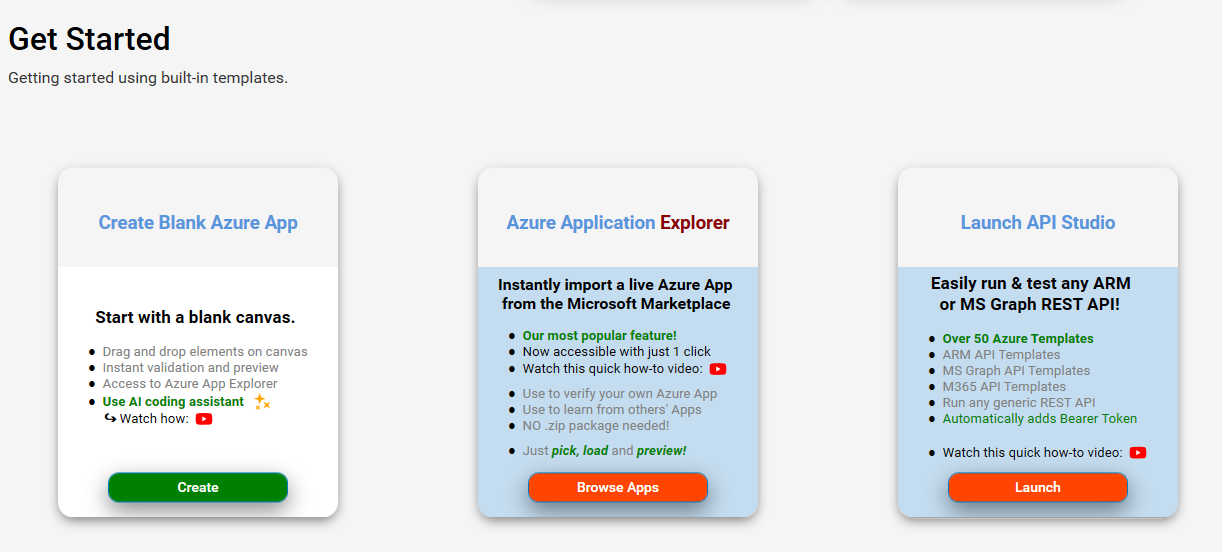
API Studio can be launched from within Maestro Studio ENSEMBLE or SOLO using the API Studio card under the Get Started section of the Lobby page, as shown in the screenshot below.
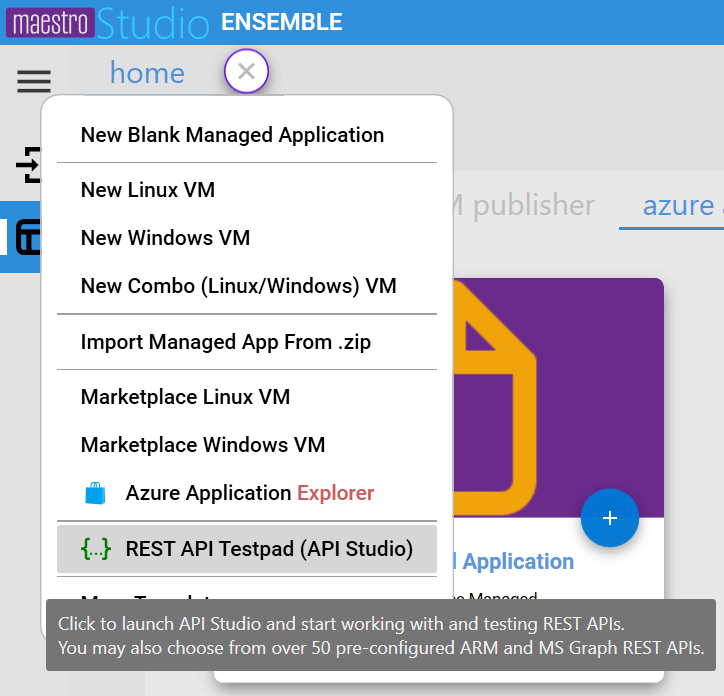
API Studio also has a menu item on the Add menu on the Studio page.
API Studio Placeholders
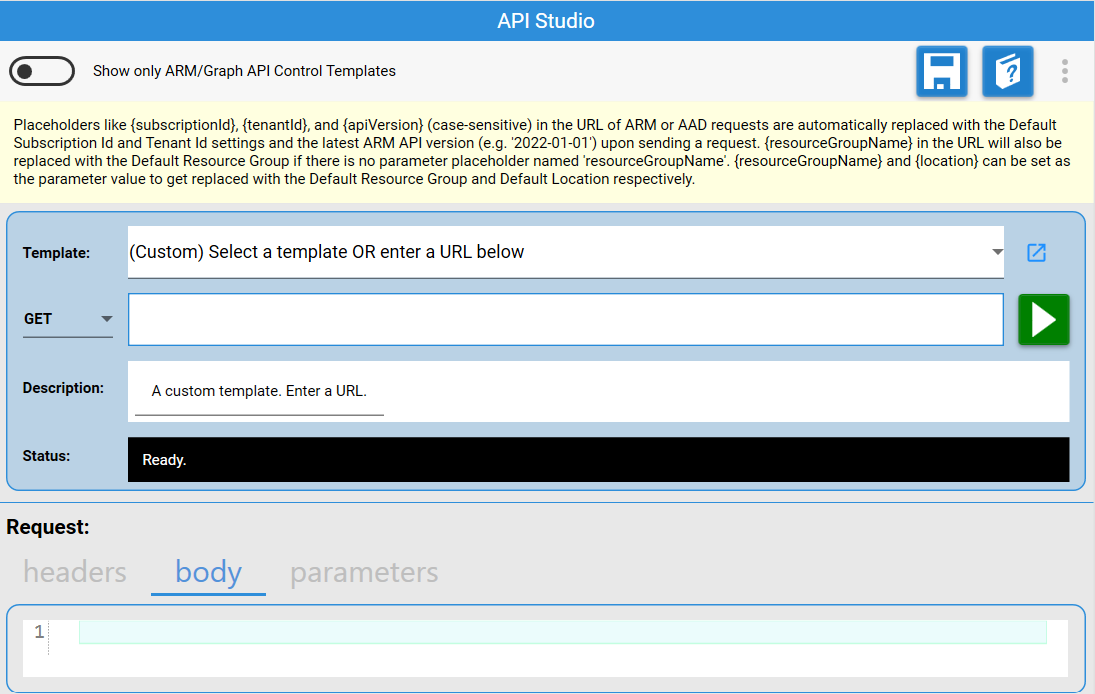
API Studio has built-in placeholders for referencing key Azure Resource Manager parameters, like the location, resource group, subscription id or tenant id. The following screenshot shows the information pane inside API Studio that explains those built-in parameters.
API Studio Settings
Built-in parameters like subscription id, resource group name, location and tenant id take their default values from the Settings page in API Studio. The Settings page enables setting an account for use in authentication and specifying default values for the subscription id, resource group name and location.
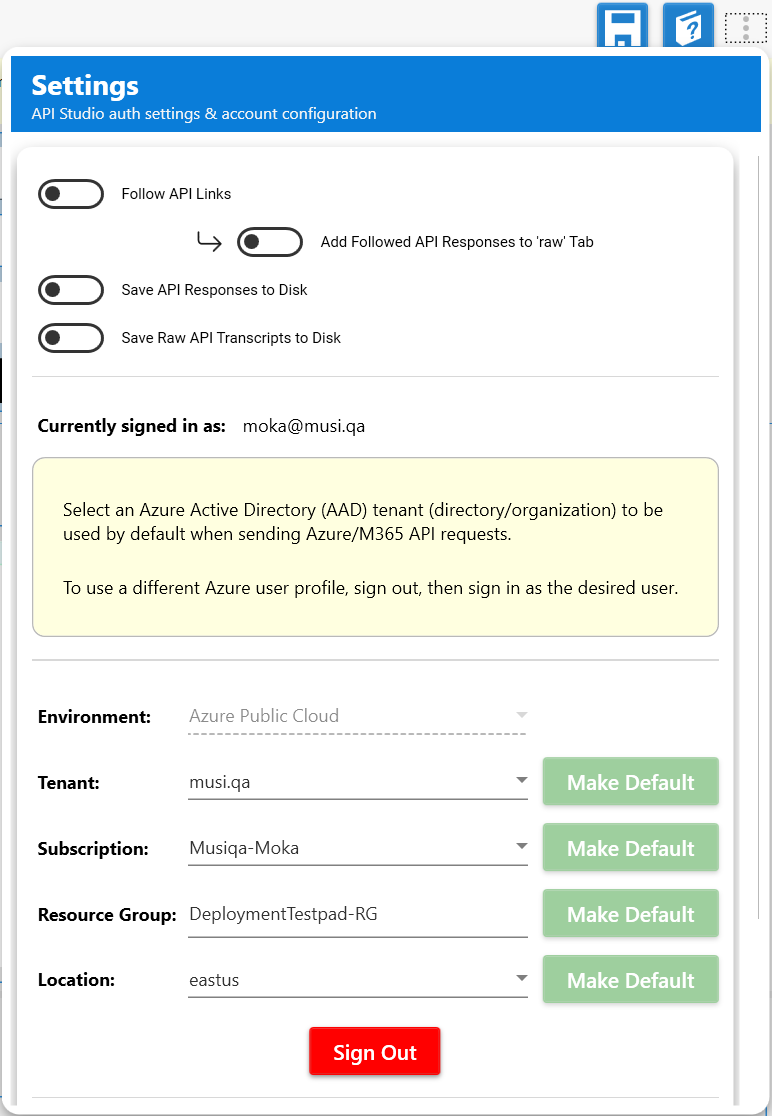
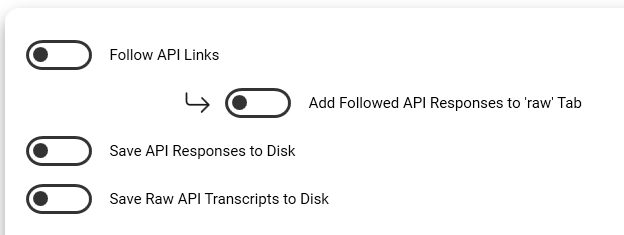
If we zoom in on the additional settings, we notice that API Studio supports automatic following of paged REST API call results. In addition, the results can be automatically saved to the file system.
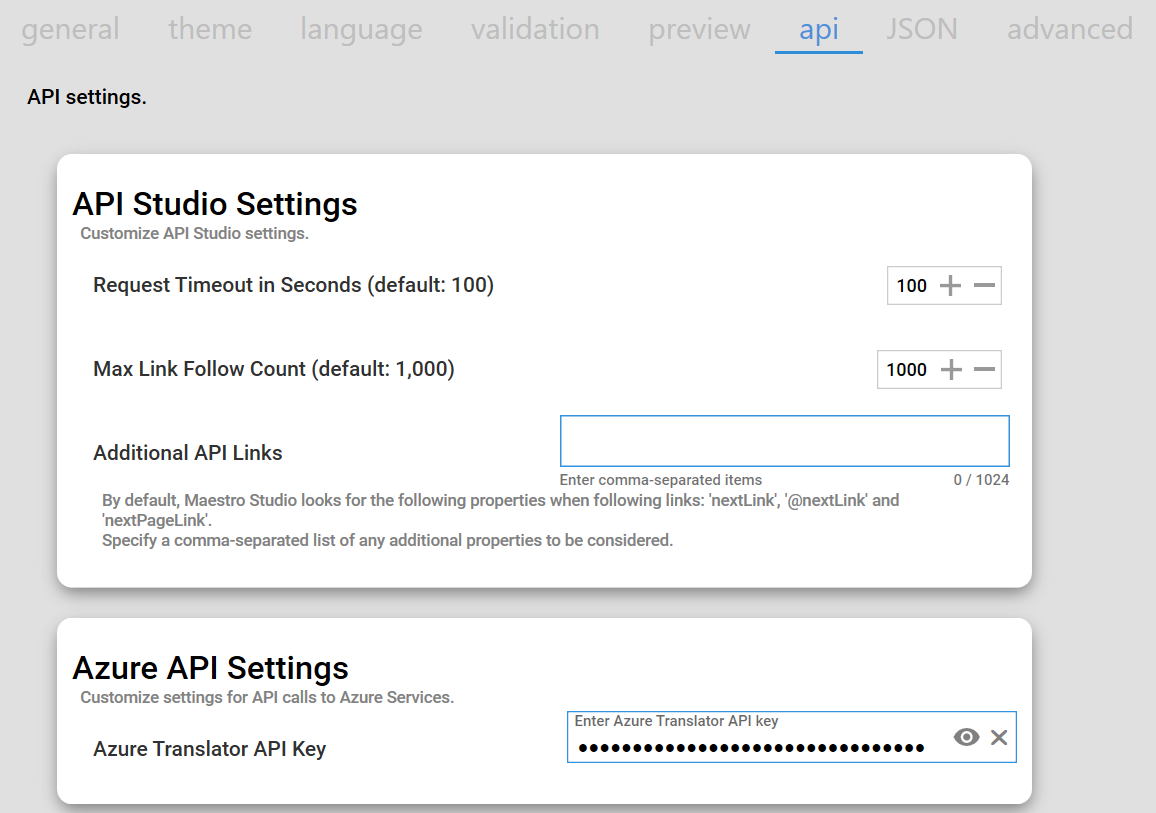
The default set of rules for following paged REST responses can be found under the api tab of Maestro Studio ENSEMBLE (or SOLO), as shown in the screenshot below. Additional patterns can also be specified.
Built-in Entra ID Support
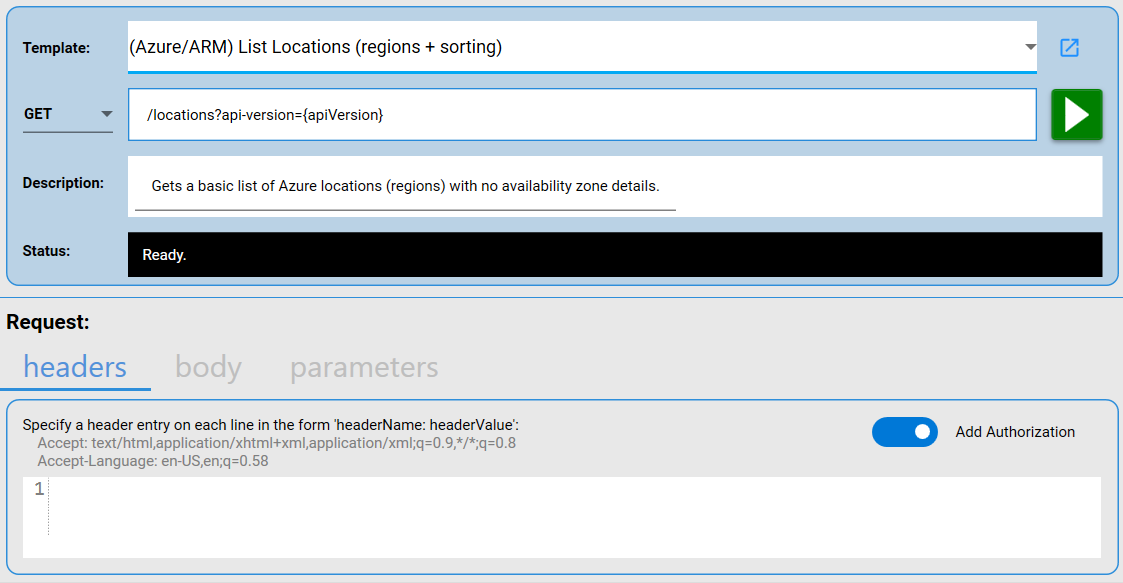
After loading an ARM sample from the built-in templates, like the locations API call shown in the screenshot below, the headers configuration has its Add Authorization toggle button turned ON. This means that API Studio will take care of automatically generating the Bearer token and populating the Authorization header with it.
The following screenshot shows the response body for a call to the locations API. It is clear how API Studio has taken care of setting the required headers even though we specified no headers in the request.

Using Parameter Placeholders
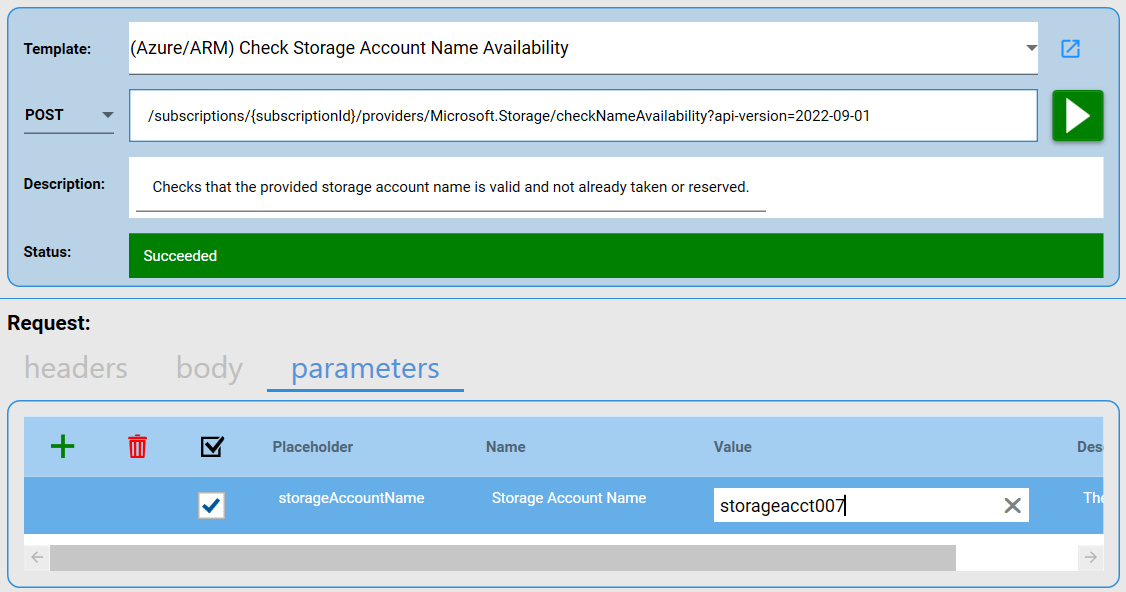
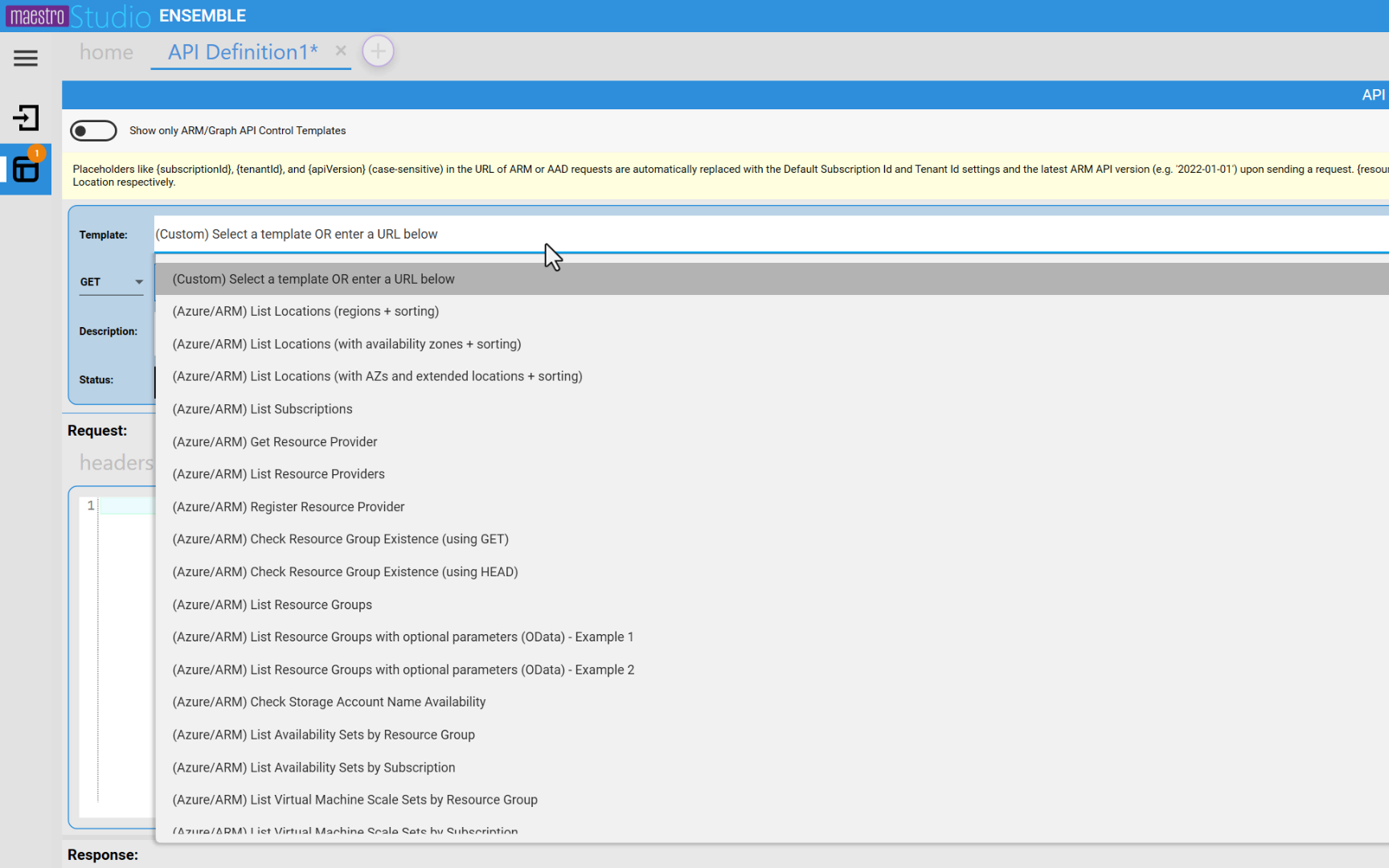
Parameter placeholders can be set in the URL, the request headers or the request body, as shown in the example below.

Notice how we can set the value for the parameter by going to the Parameters tab.
API Studio's Built-in Templates
As mentioned earlier, API Studio has over 50 built-in templates representing ARM APIs, MS Graph APIs and some Partner Center APIs. Each one of these APIs has its own configuration, including the request URL—with its placeholders—and the request headers and body. For many templates, links to the Azure Documentation page and a short description are also included.
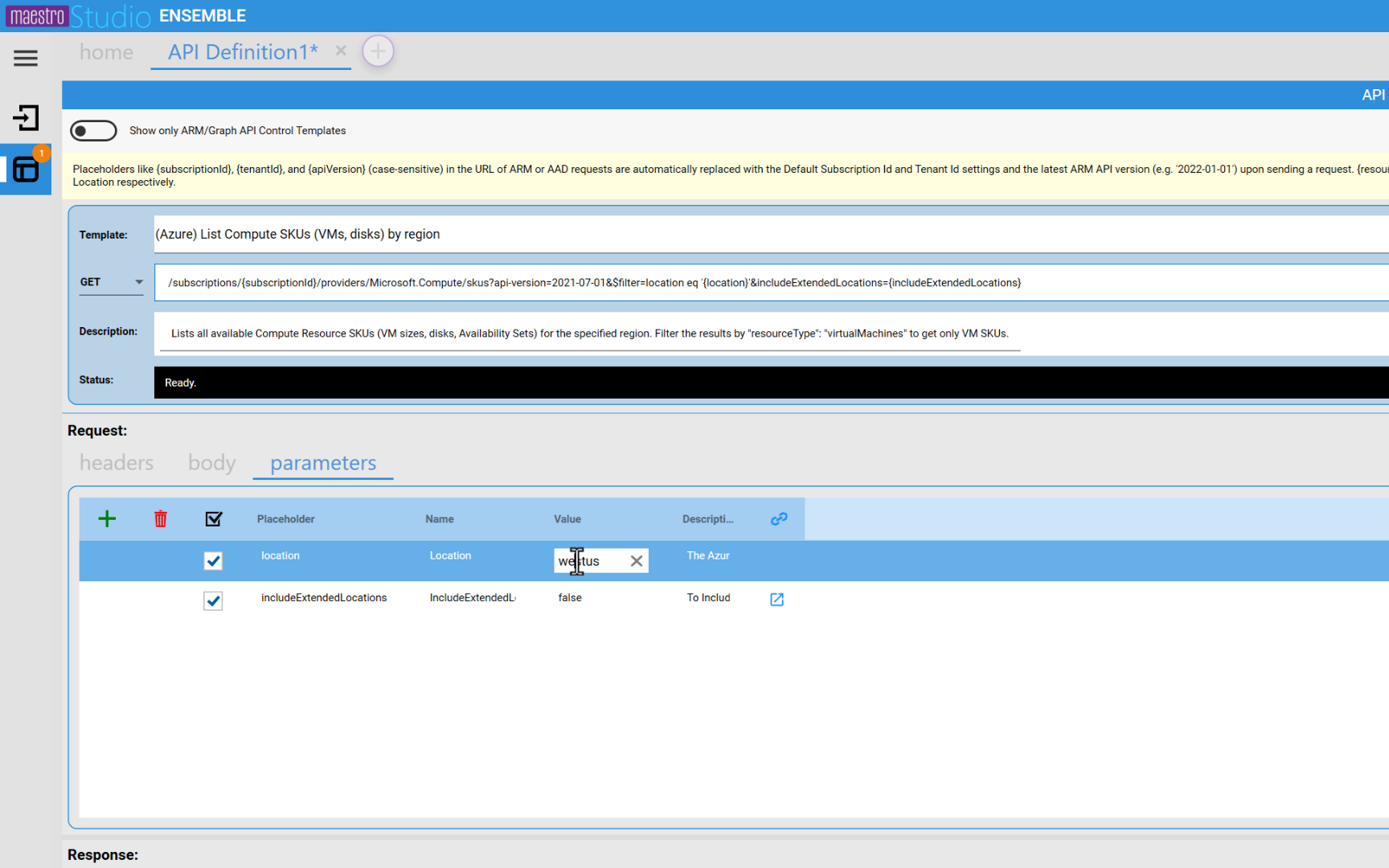
Here's another example of using parameters to specify the values to send in a REST API call, instead of using hard-coded values. In the example below, the location parameter overrides the built-in location parameter. But we could reference the built-in location parameter by setting the value in the grid shown in the screenshot below to "{location}". Notice that parameters can have their own short description and a link to an Azure documentation page listing more details about them.
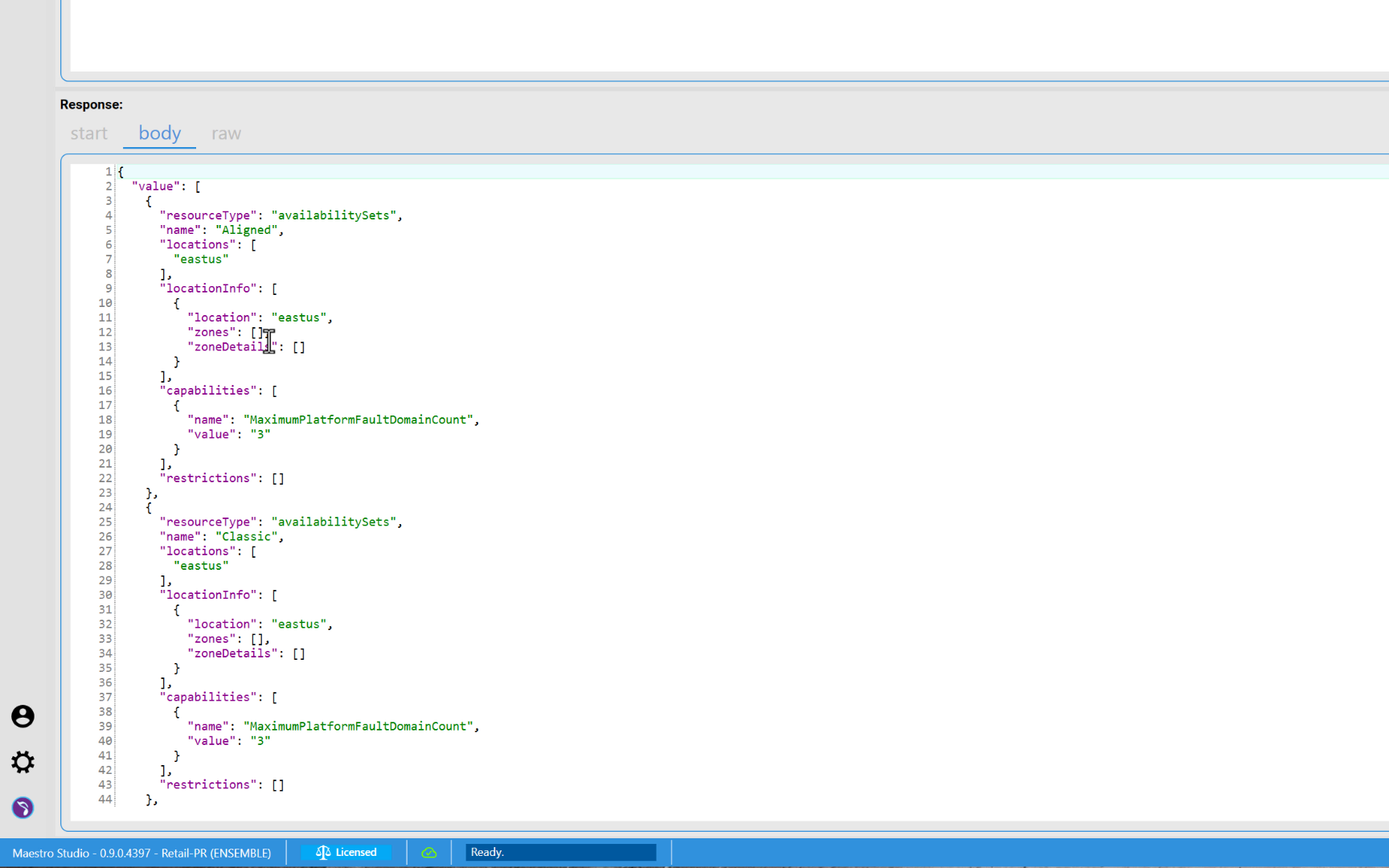
Earlier in this post, we saw the "raw" response payload for a call to the locations ARM API. Here, we take a look at the body of the response, which in this example is a JSON payload listing Azure Computer SKUs available in the region specified in the location parameter.
Advanced Scenario: Use Custom Resource URL for Entra ID Auth
Most Azure Resource Manager (ARM) REST APIs require using the https://management.azure.com as the resource URL when requesting access tokens.
Some resource providers require a different, custom resource URL to be used for requesting tokens. An example of this is the data plane of the Storage resource provider, which requires using the https://storage.azure.com as the resource URL, as documented on this Azure docs page.
API Studio has built-in support for this scenario.
Enable Custom Resource URL
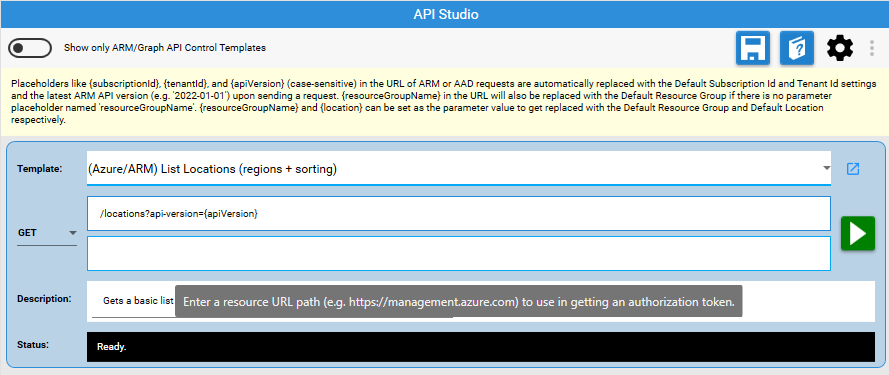
Enabling custom resource URL support requires the following key combination: Left CTRL + Left ALT + R. This toggles showing/hiding the resource URL textbox where custom Azure/Microsoft provider URLs can be specified if not correctly inferred.
An Example Using a Custom Resource URL
After showing the resource URL textbox using the keyboard key combination specified above, select the "Create Azure Storage Blob Container (using AAD)" template. The Resource URL textbox will automatically get populated with the correct resource URL, https://storage.azure.con/, as shown in the screenshot below.
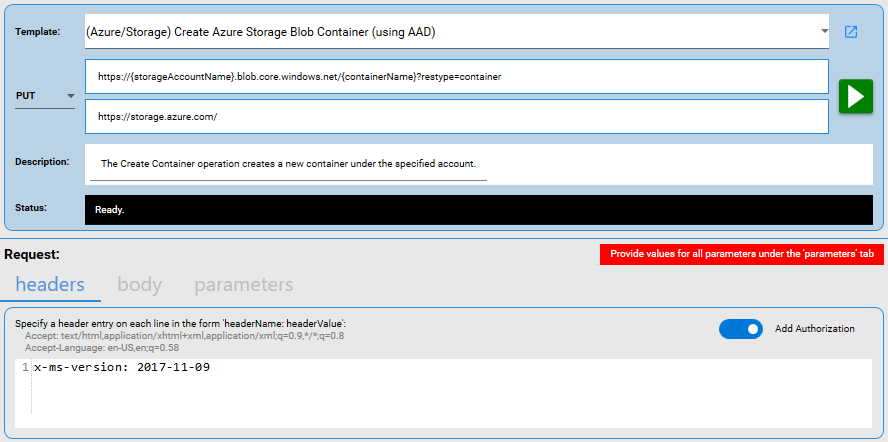
API Studio will use the specified resource URL instead of the default https://management.azure.com resource URL for requesting tokens for the REST API call.
In Summary
With API Studio, API composition and testing, especially Azure APIs, is simple and productive. This is due to the built-in Entra ID authentication support that saves you from generating tokens externally and injecting them into the Authorization header. The powerful parameterization feature enables easier testing and validation without having to change hard-coded values and mess up your API calls. Additional features like documentation text help you keep your API definitions organized and documented, including your parameters.
API Studio removes the friction that currently prevents wide use of the powerful ArmApiControl and GraphApiControl which help extend the capabilities of UI templates.
Next Steps
Get started with Maestro Studio ENSEMBLE today
ENSEMBLE changes the game by providing a visual, drag-and-drop editor for building CreateUiDefinition files. No more guessing JSON syntax or juggling schema references.
Key Benefits
✅ Visual Design – Build your UI with an intuitive interface.
✅ Full Validation – ENSEMBLE ensures your file meets Azure standards.
✅ Instant Preview – See exactly how your UI will look in the Azure portal.
✅ End-to-End Testing – Test the UI and your ARM template in real-time.
✅ Faster Delivery – What used to take weeks now takes minutes or hours.
✅ API Studio– Built-in REST API composition and testing tool with Entra ID support.
Plus, use our built-in AI coding assistant (Moka AI) to create a valid, hallucination-free ARM template and a UI definition using a natural language prompt. Learn more here. This feature is based on the core technology behind our Maestro Studio AI product.
How It Works
- Open ENSEMBLE and start a new CreateUiDefinition project.
- Drag and drop UI elements like text boxes, dropdowns, and checkboxes.
- Configure properties (labels, default values, validation rules) in a simple panel.
- Preview instantly to confirm the user experience.
- Export your JSON—ready to use in your Azure Managed Application.
Ready to Build Smarter?
Stop wasting time on manual JSON editing. Start creating CreateUiDefinition and ARM Template files quickly, efficiently, and confidently with Maestro Studio ENSEMBLE.
👉 Learn more and get started today
👉 Get the Free Trial
👉 Get ENSEMBLE from the Micosoft Marketplace as Pay-As-You-Go (PAYG) or Monthly: Maestro Studio ENSEMBLE on the Microsoft Marketplace
👉 Visit our website: StratusOn.com
👉 Contact us with any questions or to share feedback.