Refactoring in UI definition templates (createUiDefinition and uiFormDefinition) is error prone and can easily lead to breaking changes if not planned carefully. Specifically, applying a rename refactoring to an input control is almost always going to result in a broken expression somewhere in the UI definition. Unless the input control is orphaned, input controls are referenced in expression that either pass their value to the ARM template or apply some transformation on it before handing it over.
In this post, we'll show how Maestro Studio ENSEMBLE enables easy and safe refactoring due to the built-in, real-time expression validation that is triggered for any change in the UI definition. This helps instantly flag any expressions impacted by a refactoring.
But flagging the impact is only the first step. ENSEMBLE also enables navigating to the impacted artifact and locating the granular part where the issue is, down to the function, function parameter, or function property. Due to the visual, self-validated nature of the Expression Editor, a fix is guaranteed to always be correct and valid.
We'll start with a short video demo and dissect the steps in the refactoring walkthrough that follows.
Safe Refactoring Starter
The following video provides a quick demo of a breaking change introduced by a refactoring and how to easily and safely fix it.
A Quick Refactoring Walkthrough
This walkthrough is based on the video shown above, which involves picking an Azure Managed Application from the Marketplace offers and loading it visually in the designer.
We've picked a random offer which had no issues.
We will edit one of the TextBox controls and update its name. The reason we picked a TextBox is because it is an input control, and input controls usually have their values referenced in expressions specified in other UI controls or in Output parameters.
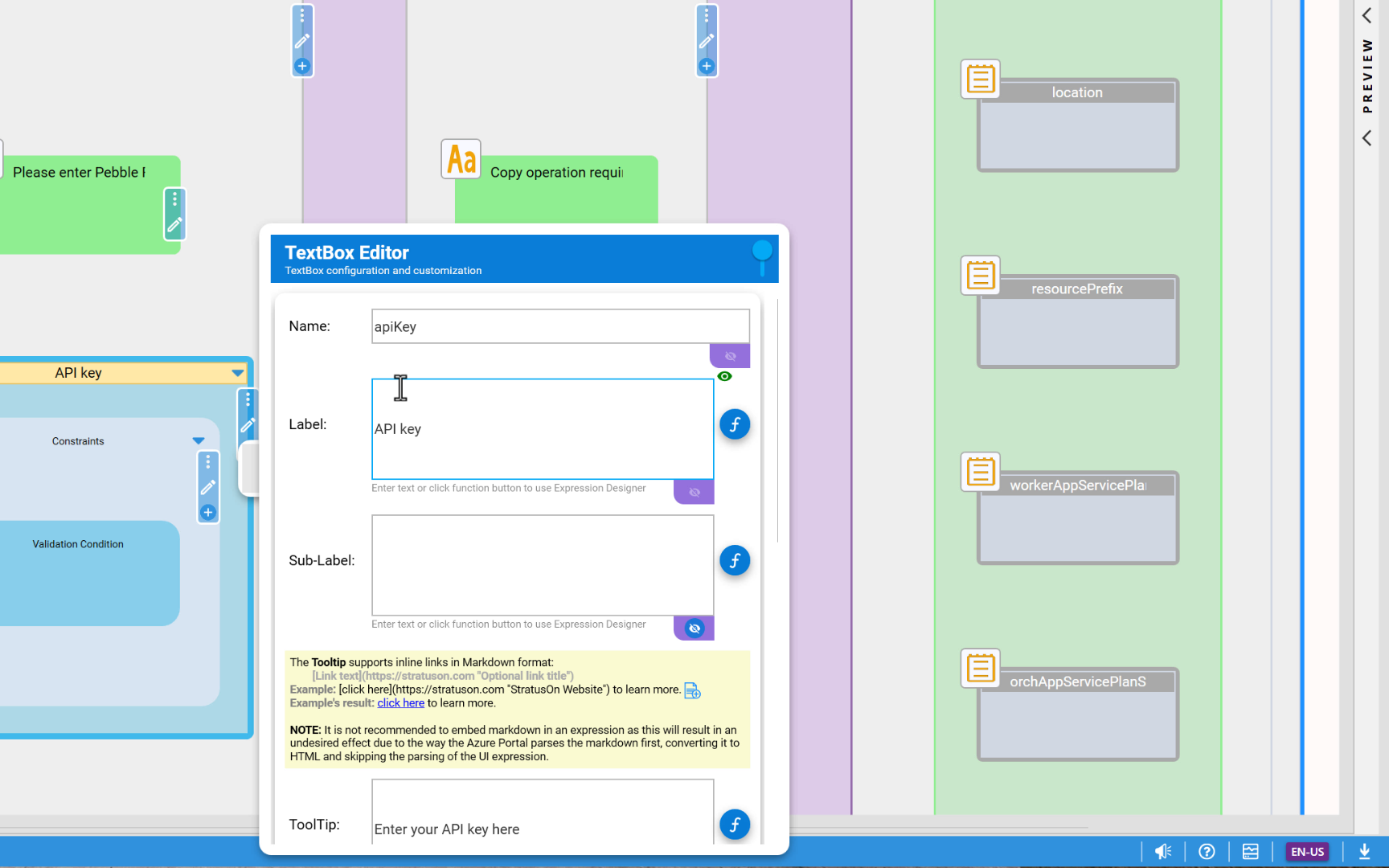
Let's change the name of the control to a new name.
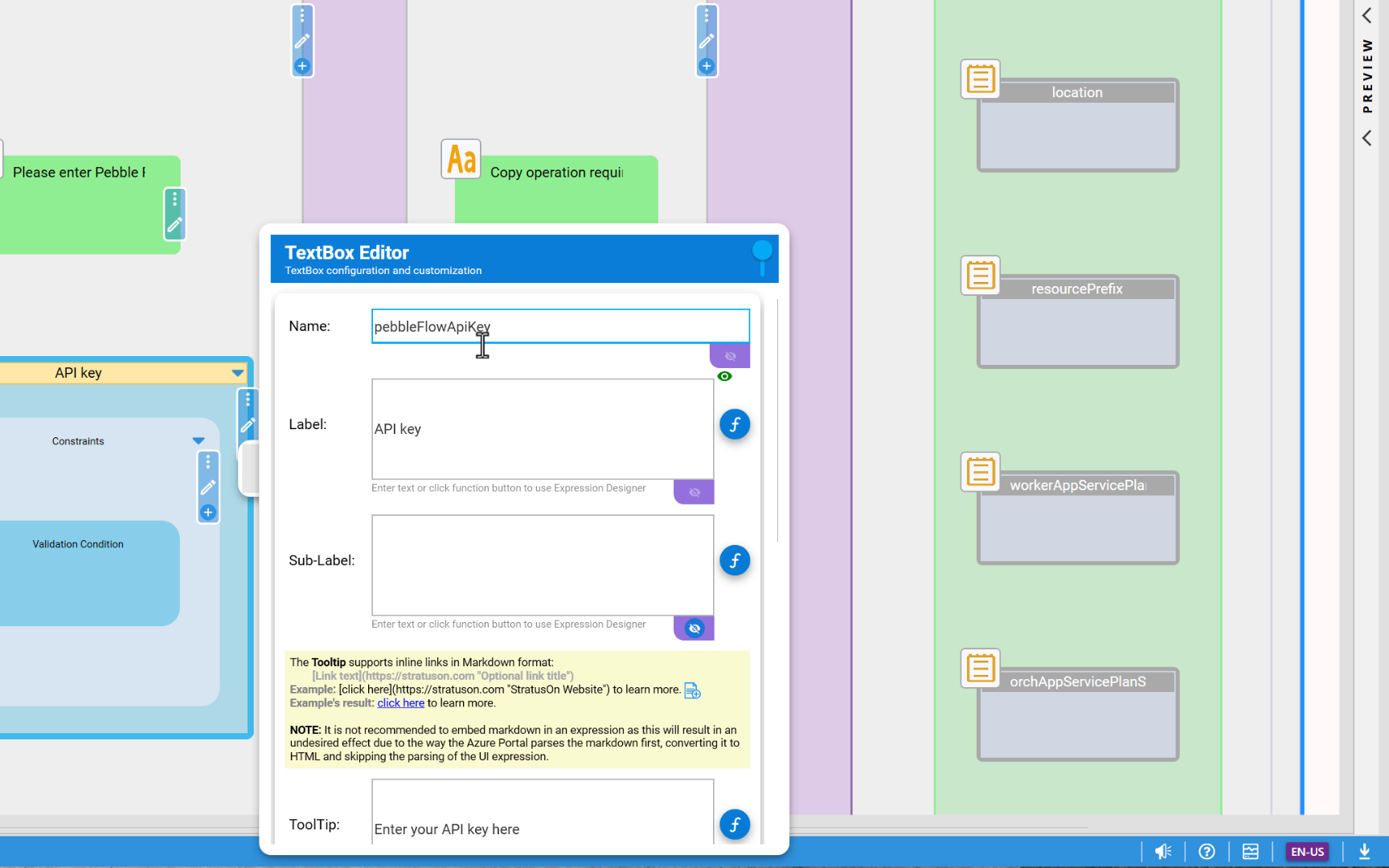
Notice that as soon as we've changed the name, the designer's toolbar displays the warning icon instead of the green check mark. This indicates that the change—the refactoring—introduced a breaking change in the createUiDefinition, most likely in an expression that was referencing the control by its name in order to retrieve its value.
Clicking on the warning icon displays the Validation Message popup which lists all validation messages detected in the createUiDefinition (as well as the ARM template). The message shown in the screenshot below clearly indicates that the old name of the control is referenced in an expression. The expression is set in the Value property of an Output parameter.
To navigate to the error location, we can click on the magnifier icon. This will select the visual element on the design canvas.
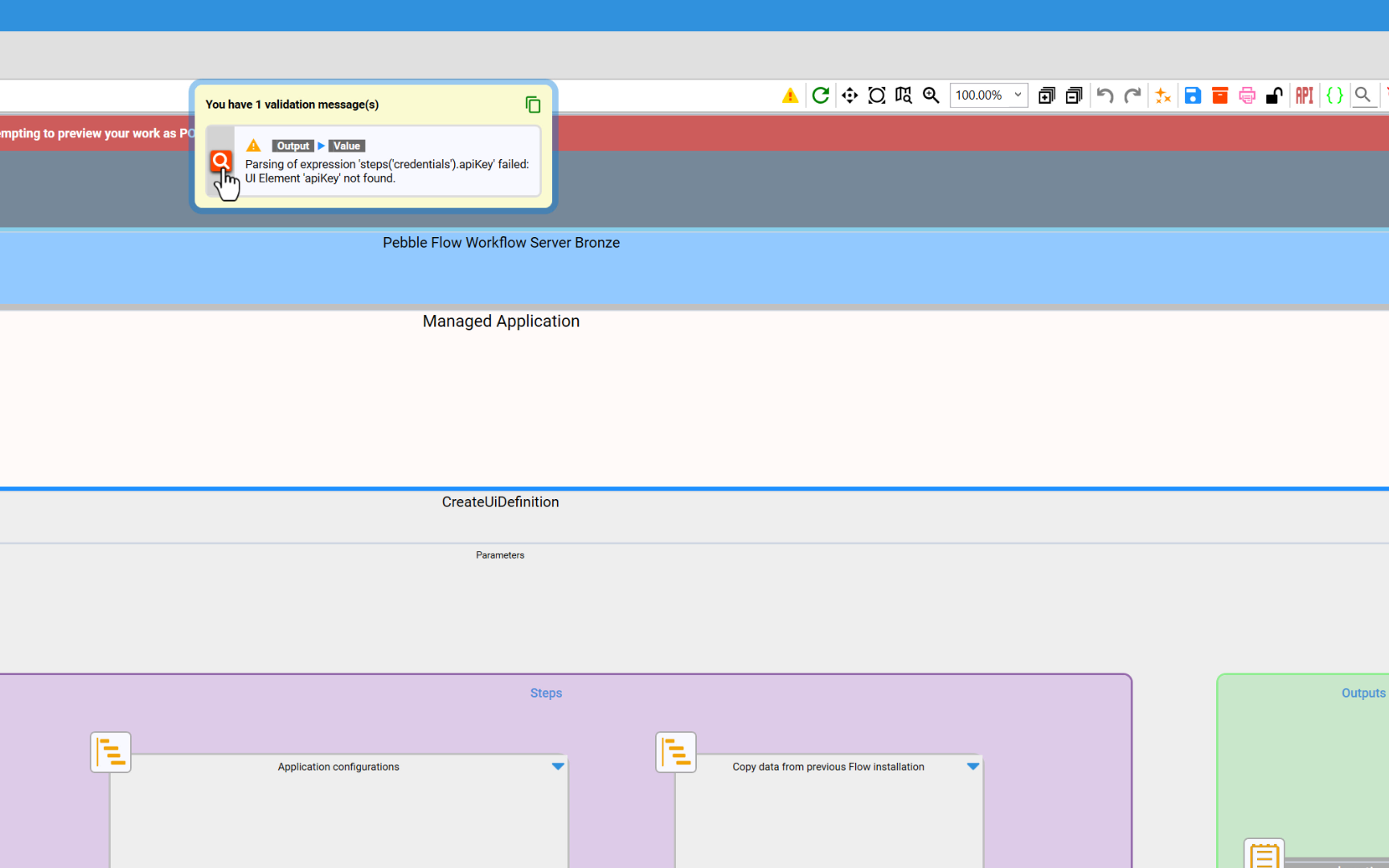
Once we've located the impacted location, in this case an Output parameter, we can click on Edit to inspect and fix the issue.
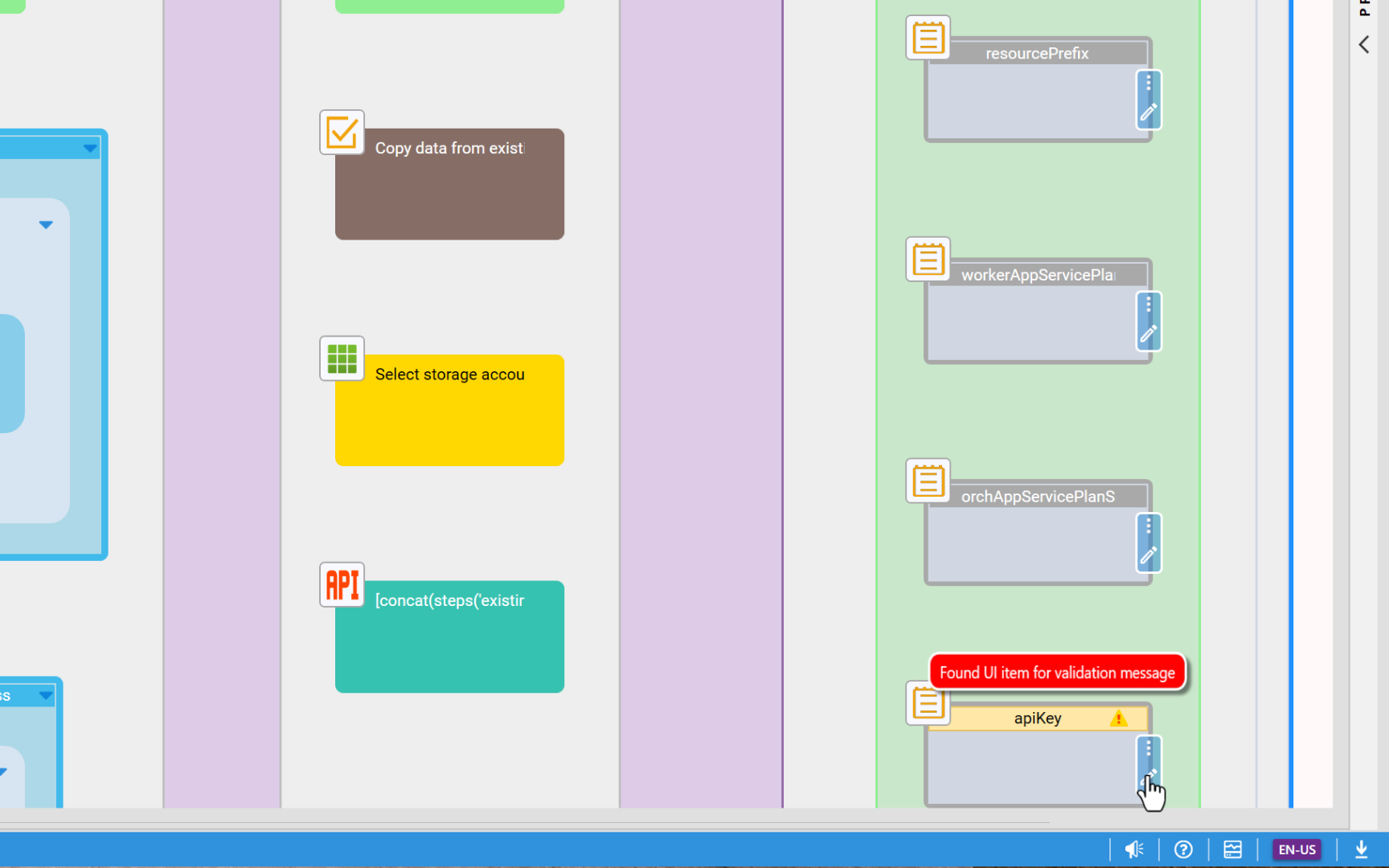
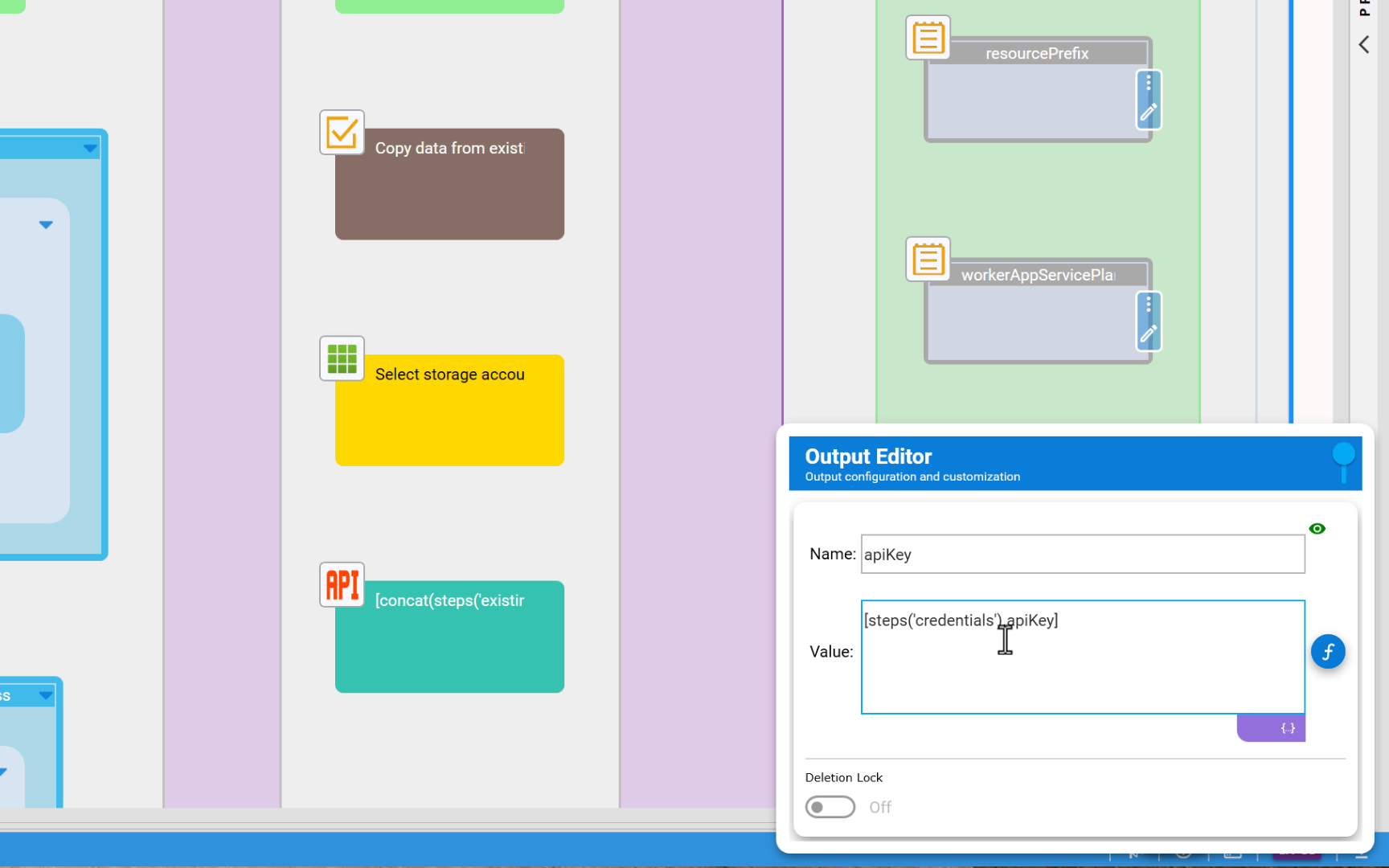
Upon opening the Output parameter editor, we can see that the expression specified in the Value property is referencing the old name of the control, apiKey, inside the credentials step. We can change it manually to the new control name, but this is error prone.
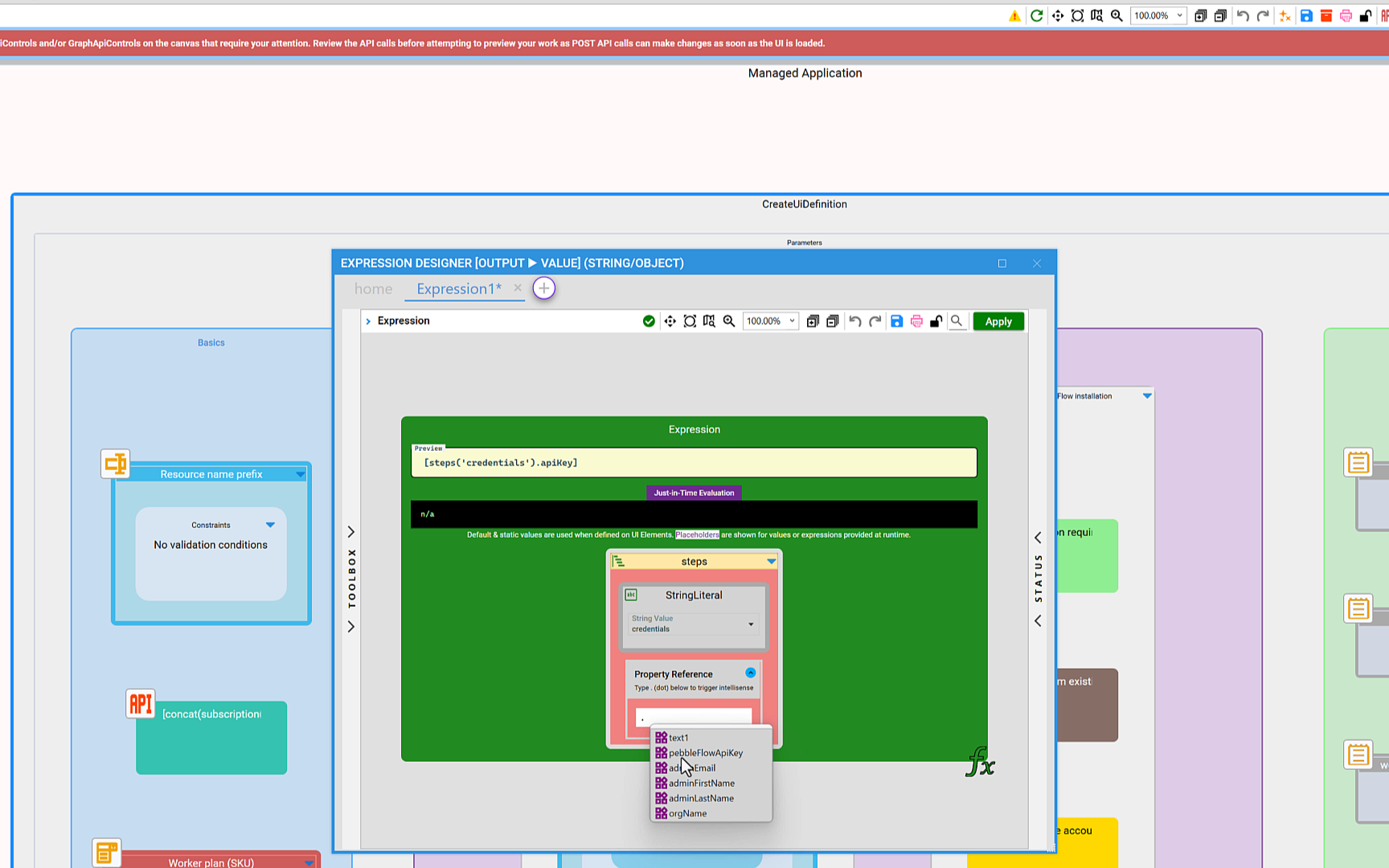
Instead, we will utilize the power of the visual Expression Editor which provides a visual representation of the expression with real-time validation. This guarantees only valid expressions can be applied. It also enables pinpointing the specific part of an expression—the function, or the function parameter, or the function property—where the problem is so that is can be fixed in a quick and productive way. This is a big deal, especially with large expressions where attempting to find the place where a typo or error exists requires a lot of trial and error, and patience.
Selecting the correct control name is simple and error-free. Instead of having to type it, the Expression Editor facilitates the change by providing a list of available controls in the step referenced by the step function. As soon as the correct, valid control is selected, the Expression Editor displays the green check mark, indicating that the expression is valid with no issues. The next step is to click on the Apply button to persist the change in the UI expression.
As soon as the change to the expression is applied, expression evaluation is automatically triggered. This time, the expression has no issues, and the green check mark appears on the designer toolbar.
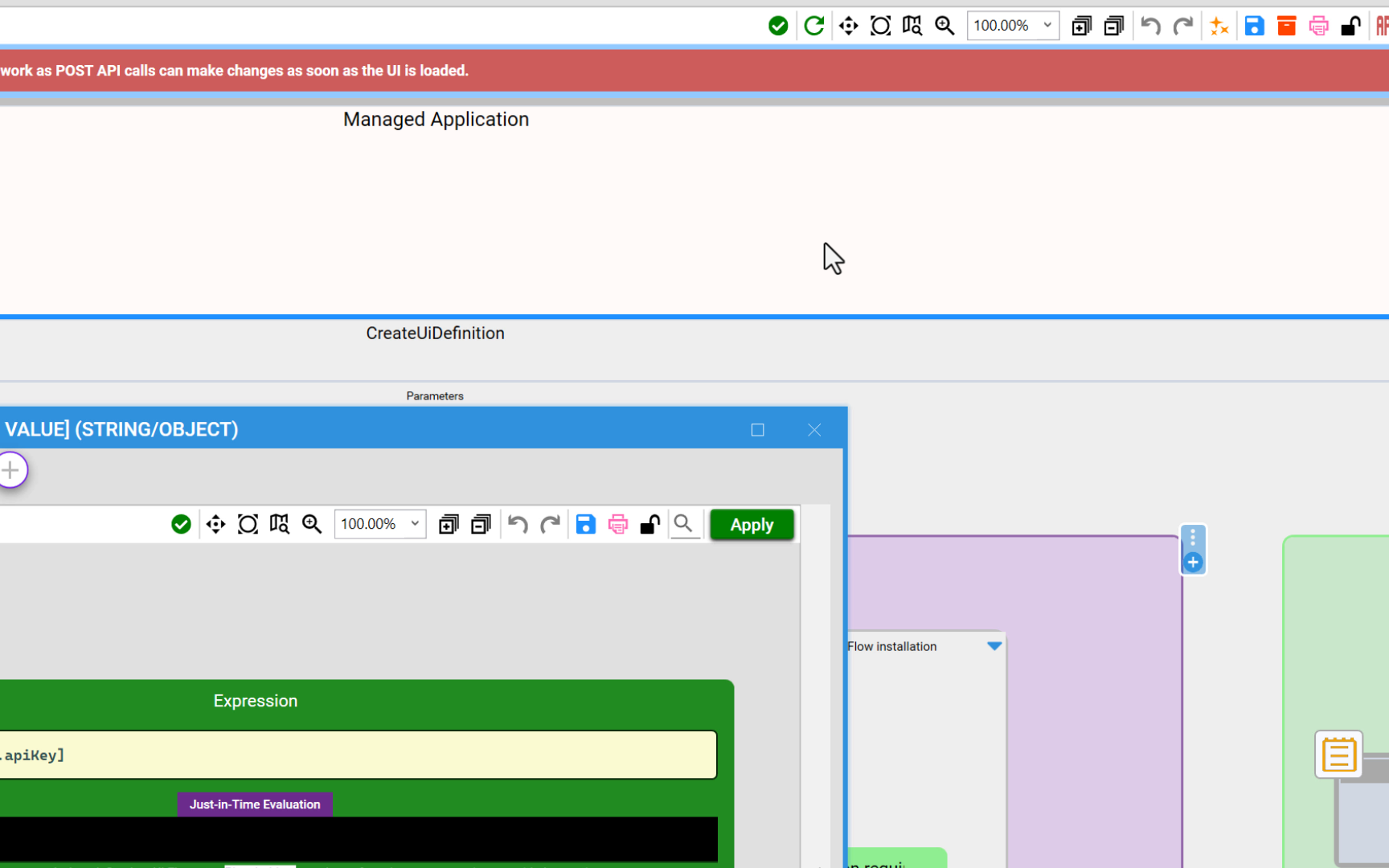
At this point, the refactoring is complete and impacted areas and references have been located and corrected. It is safe to preview and publish.
Real-time expression evaluation has done the work that would have required manual search and potential mistakes and typos.
In Summary
With ENSEMBLE's real-time expression validation, typos and refactoring errors are a thing of the past. Real-time validation and a powerful, visual expression designer help eliminate refactoring bugs.
Next Steps
Get started with Maestro Studio ENSEMBLE today
ENSEMBLE changes the game by providing a visual, drag-and-drop editor for building CreateUiDefinition files. No more guessing JSON syntax or juggling schema references.
Key Benefits
✅ Visual Design – Build your UI with an intuitive interface.
✅ Full Validation – ENSEMBLE ensures your file meets Azure standards.
✅ Instant Preview – See exactly how your UI will look in the Azure portal.
✅ End-to-End Testing – Test the UI and your ARM template in real-time.
✅ Faster Delivery – What used to take weeks now takes minutes or hours.
✅ API Studio– Built-in REST API composition and testing tool with Entra ID support.
Plus, use our built-in AI coding assistant (Moka AI) to create a valid, hallucination-free ARM template and a UI definition using a natural language prompt. Learn more here. This feature is based on the core technology behind our Maestro Studio AI product.
How It Works
- Open ENSEMBLE and start a new CreateUiDefinition project.
- Drag and drop UI elements like text boxes, dropdowns, and checkboxes.
- Configure properties (labels, default values, validation rules) in a simple panel.
- Preview instantly to confirm the user experience.
- Export your JSON—ready to use in your Azure Managed Application.
Ready to Build Smarter?
Stop wasting time on manual JSON editing. Start creating CreateUiDefinition and ARM Template files quickly, efficiently, and confidently with Maestro Studio ENSEMBLE.
👉 Learn more and get started today
👉 Get the Free Trial
👉 Get ENSEMBLE from the Micosoft Marketplace as Pay-As-You-Go (PAYG) or Monthly: Maestro Studio ENSEMBLE on the Microsoft Marketplace
👉 Visit our website: StratusOn.com
👉 Contact us with any questions or to share feedback.